
Overview
The QuickBooks Online integration syncs approved timesheets, overtime, and approved paid leave from TimeLeaf to QuickBooks as TimeActivity entries. This feature is available on the Professional plan and above, and works for QuickBooks companies in any country.
Connecting via OAuth
- Go to Settings > Integrations.
- In the Payroll section, click Connect on the QuickBooks card.
- You are redirected to Intuit's OAuth consent screen. Sign in with your QuickBooks admin account and authorize TimeLeaf to access your company.
- You are redirected back to TimeLeaf, where the connection now shows as Connected along with your company name.
TimeLeaf requests read/write access to time activities and read access to employees and company info. Tokens refresh automatically.
To disconnect, click Disconnect on the QuickBooks card in the same section. Previously synced TimeActivity entries remain in QuickBooks — disconnecting doesn't delete anything from either system.
Whether your connection points at a QuickBooks sandbox or production company is a deployment-level setting your TimeLeaf administrator configures, not something you choose per connection.
Employee mapping
TimeLeaf matches employees to QuickBooks by the employee ID field on their profile — there's no automatic email-based matching. To map an employee, go to Settings > Users, open their profile, and set their Employee ID to match their QuickBooks employee record. Employees without a mapped ID are skipped during sync (reported individually, not a whole-sync failure).
How timesheets sync
Syncing is triggered by an administrator for a given pay period — it does not run automatically the instant a timesheet is approved. For each employee with approved data in the period, TimeLeaf creates TimeActivity entries in QuickBooks:
Regular hours
Each approved work day creates one TimeActivity with the date, hours, and employee reference.
Overtime
When an employee's daily or weekly hours exceed the threshold defined in your overtime policy, TimeLeaf splits that day into two TimeActivity entries:
- Regular entry — hours up to the threshold, using the original work description.
- Overtime entry — the excess hours, using the same description prefixed with
[Overtime].
QuickBooks' TimeActivity object has no native overtime field, so this prefix is the signal your payroll team uses to apply the correct rate.
Approved leave (PTO and time off)
Approved paid leave is synced as its own TimeActivity entry, separate from worked hours. The entry description is formatted as PTO - {policy name} (for example, PTO - Standard Vacation or PTO - Sick Leave). Only paid leave is synced — unpaid leave never creates an entry.
Example: week with overtime and leave
The screenshot below shows how a week with one PTO day and an overtime day appears in QuickBooks after sync. Emily Platt had approved Standard Vacation on Tuesday and worked 10 hours on Friday (2 hours over the daily threshold):
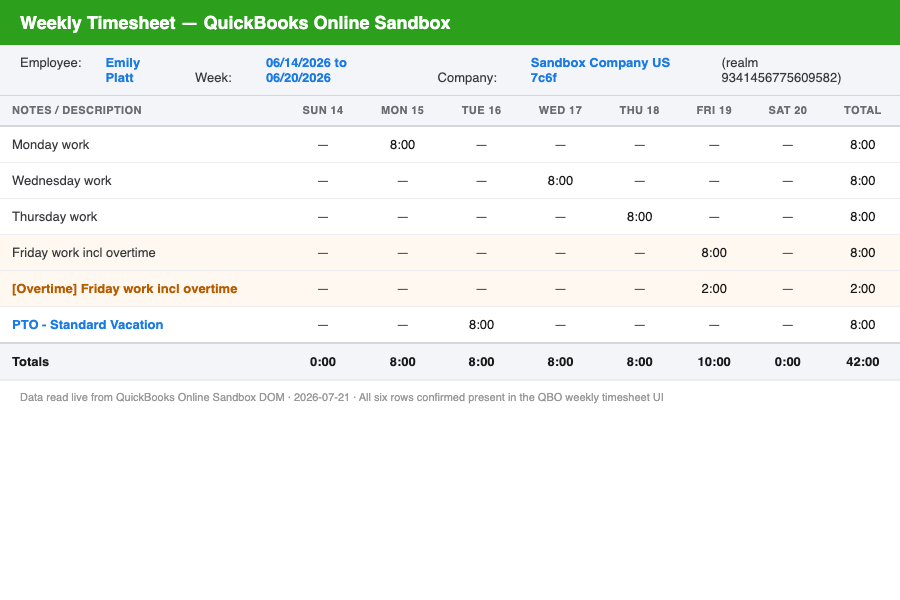
Illustrative reconstruction of live sandbox data — the entry labels and hours shown are real values read from a live QuickBooks session, re-rendered here rather than captured as a pixel screenshot.
Six separate TimeActivity entries are created — one per day per activity — with the overtime and PTO entries correctly broken out.
Supported data fields
| TimeLeaf field | QuickBooks TimeActivity field | Notes |
|---|---|---|
| Employee | EmployeeRef | Mapped via the Employee ID field |
| Date | TxnDate | |
| Regular hours | Hours, Minutes | |
| Overtime hours | Hours, Minutes | Separate TimeActivity entry, description prefixed with [Overtime] |
| Approved leave | Hours, Minutes | Separate TimeActivity entry, description set to PTO - {policy name} |
| Timesheet notes | Description |
Troubleshooting
If a sync reports failures, common causes are: an employee missing their QuickBooks employee ID mapping, or an expired connection that needs reconnecting via Settings > Integrations. Failed entries are reported individually rather than failing the entire sync.